Following on from Part 1 this second installment aims to credit the online tools I used to determine the colour scheme of my site.
Choosing the colour scheme of a website is by far the aspect I love most about site design but it is also an activity that I find equally challenging. This is in part due to the fact that I am not an artist. I don’t even have a GCSE (O’Level) in Art and haven’t studied the subject since I was about 13.
Another reason why choosing colours for a website can be hard work is because the colour of a site is affected by a number of things e.g. browser, screen type and colour depth of a monitor’s display. These factors can cause the appearance of a particular colour to vary from one machine to another.
To make the task even harder, when defining a colour in CSS or HTML, each colour selected (be it for fonts, backgrounds or borders) has to be coded using the individual colour’s unique hexadecimal (hex) code.
For example, the colour white has a hex value of FFFFFF and the colour black has a hex value of 000000.
With there being countless colours to choose from there are equally as many hex numbers one has to be aware of.
Thankfully the internet is awash with tools that provide you with lists of colours and their corresponding hex numbers. Of these internet resources there are two that I use all the time.
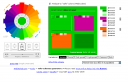 The first one is the Colour Scheme Generator which allows you to create good-looking, “well balanced and harmonic web pages.” It is available from Well Styled and for a given base colour; it provides a range of colour schemes and variations that can be used in deciding on a theme for your site.
The second is a free small utility available from Nattyware called Pixie. Once downloaded Pixie works by pointing the mouse over the object/colour of your choice and “it will tell you the hex, RGB, HTML, CMYK and HSV values of that colour. You can then use these values to reproduce the selected colour.” When working on the header of this blog I used Pixie to make sure the shade of orange around the image of the woman in the left corner was exactly the same shade as that of the header’s background.
Other colour scheme resources that I find useful include:
Deprecated: Function get_magic_quotes_gpc() is deprecated in /home3/beginsat/public_html/journal/wp-includes/formatting.php on line 3964
Deprecated: Function get_magic_quotes_gpc() is deprecated in /home3/beginsat/public_html/journal/wp-includes/formatting.php on line 3964
Visibone’s definitely one of the best web reference packages out there. Been planning to purchase their chart suite for some time.
Deprecated: Function get_magic_quotes_gpc() is deprecated in /home3/beginsat/public_html/journal/wp-includes/formatting.php on line 3964
Deprecated: Function get_magic_quotes_gpc() is deprecated in /home3/beginsat/public_html/journal/wp-includes/formatting.php on line 3964
Are you sure you are writing in English? I don’t know if it is laziness or intimidation, all these techi sounding words scare me to bits. Where can I go for a tutorial for dummies?
Liking the whole new blog
Deprecated: Function get_magic_quotes_gpc() is deprecated in /home3/beginsat/public_html/journal/wp-includes/formatting.php on line 3964
Deprecated: Function get_magic_quotes_gpc() is deprecated in /home3/beginsat/public_html/journal/wp-includes/formatting.php on line 3964
Great links, thx!
Deprecated: Function get_magic_quotes_gpc() is deprecated in /home3/beginsat/public_html/journal/wp-includes/formatting.php on line 3964
Deprecated: Function get_magic_quotes_gpc() is deprecated in /home3/beginsat/public_html/journal/wp-includes/formatting.php on line 3964
http://www.alvit.de/web-dev/color-tools-mixers-palettes.html
http://www.raquedan.com/random100.php
All the colour resources you need. I agree choosing colours is a pain.
Deprecated: Function get_magic_quotes_gpc() is deprecated in /home3/beginsat/public_html/journal/wp-includes/formatting.php on line 3964
Deprecated: Function get_magic_quotes_gpc() is deprecated in /home3/beginsat/public_html/journal/wp-includes/formatting.php on line 3964
tell me more about the mechanism of your thoughts and speech i must confess this is a lovely link